Table of Contents
SSH access
All Unipi devices include a full-featured ARM-based Linux environment, which is accessible via a Secure Shell console after following the steps below. This allows the users of Unipi devices to fully leverage the incredible versatility provided by open-source software packages.
Unipi Edge / Patron / Gate
Unipi Patron controllers and Unipi Edge / Gate devices have an internal SSH server. This server is enabled by default for all the most current OS images that we provide for these units. The exception is the Mervis OS image, which has SSH disabled. Instructions for enabling SSH can be found in the leaflet supplied with the unit or below. After enabling the server, it is then possible to connect to the PLC through any SSH client in the local network. The following instructions are intended primarily for users who are not yet familiar with SSH.
Connecting to the service interface, enabling the SSH
The first step is to enable remote access to the SSH internal server. This configuration is available in the service interface accessible by the following methods:
Enter the IP address into your browser's address tab and confirm. Upon loading the service interface the following screen with multiple buttons should appear:
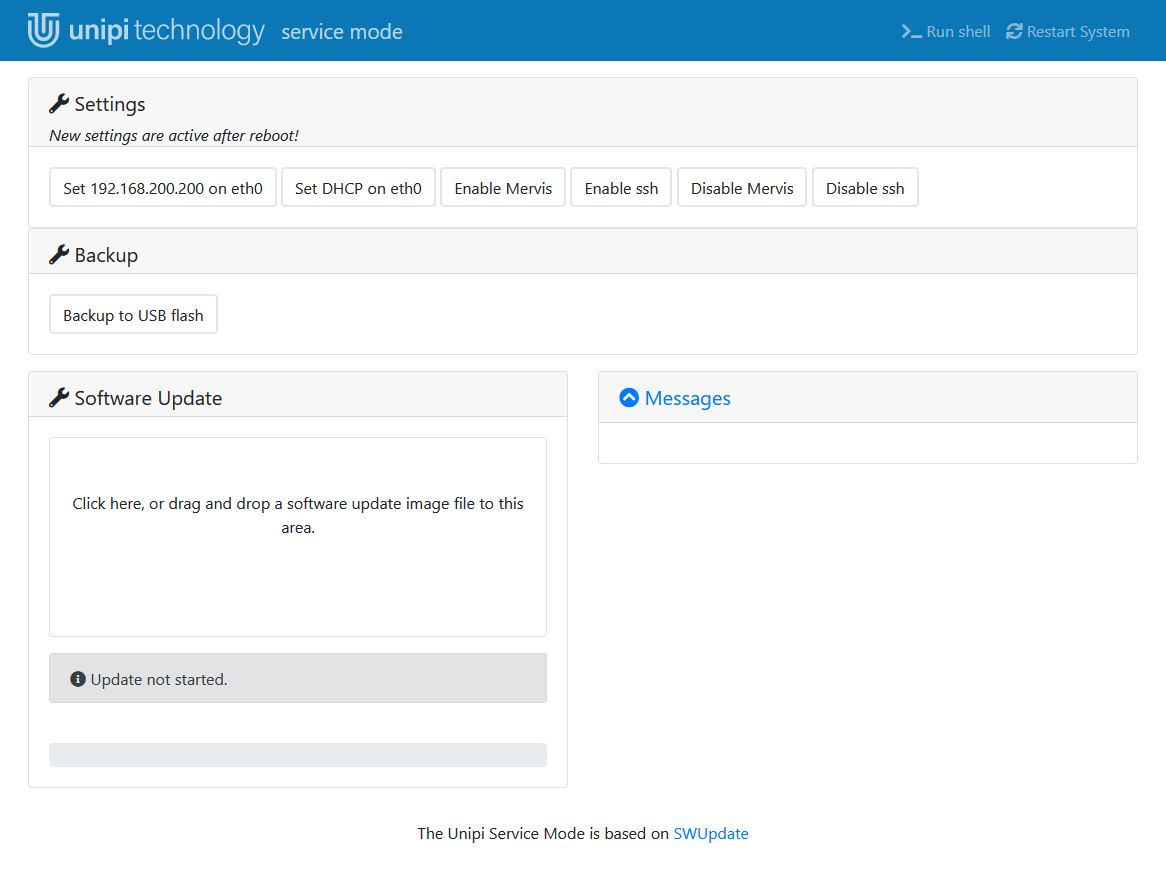
To enable the SSH server first, click Enable ssh in the Settings category, and when the successful enable message appears, click Restart System in the upper right corner.


Attention:
Due to security reasons enable/disable SSH buttons are not available in Mervis OS 2.7.17.0 and newer
Unipi Neuron / 1.1
All up-to-date OS images provided for Unipi Neuron and Unipi 1.1 controllers have SSH enabled by default except for the Mervis OS image. Password must be insert to SD card before connecting to the unit using SSH. See Passwords.
Selecting a suitable communication software
There are many tools that can be used to connect to SSH servers. For this tutorial, we recommend using PuTTY


