Mobile app
Mobile app is a part of Mervis SCADA system, it is suitable for monitoring, as it does not support graphics schemes, but it supports push notifications.
Installation
You can install the app either on Android, iOS or PC.
Android
Begin by entering the following address in your web browser (Google Chrome  ): https://scada.unipi.technology/mobile. Then click on the settings in the upper right corner to expand the browser options.

Select “Install the application”.

On your mobile device, you will find it under this icon: 
iOS
Start by entering the following address in your web browser: https://scada.unipi.technology/mobile.

By clicking on the share icon, you will display a menu where you can. Now select “Add to Home Screen”, then “Add”.


Now you can find the icon on your home screen:

PC
Most major browsers do support installing PWA.
Chrome
See the tutorial from Google.
Edge
- In the web browser Microsoft Edge, enter the address: https://scada.mervis.info/mobile.
- In the top bar, click on the option “\*Install Mervis SCADA app\*”

Login
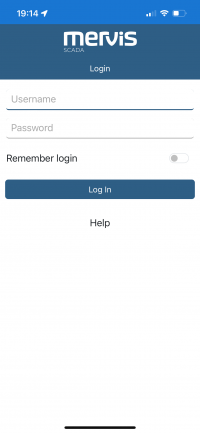
To access the Mervis SCADA, enter your login details:
Projects
This page lists all projects the users has rights to.
- Projects can be added to favorites by clicking on the star icon.
- The number of data points with communication faults is indicated by a number in an orange circle
 ,
, - The number of data points with active alarms is marked by a number in a red circle
 .
.




Note:
In the list, you can filter by project name, active alarms, and communication faults.

Text View and Graphs
- The selected project will be displayed in text view.
- Data points with control capability are highlighted in blue on the left side.
- The timestamp of the last update of the data point is indicated by the highlighting on the right side.
- When held down, the selected data point is marked, and its history can be displayed in a line graph.

Alarms
This tab lists your alarms from all projects.

Profile - User Settings
Here, you will find the settings for your account and also the option to log out.


