This is an old revision of the document!
Uploading a RunTime configuration
Each time you wish to upload RT configuration changes, make sure, that you downloaded the PLC config beforehand. We also recommend to double-check settings of your network card and make sure it is compatible with the required configuration (mainly if the DHCP client is enabled). After these checks, set the configuration.
Patron
Neuron
Gate
Unipi 1.1
Axon
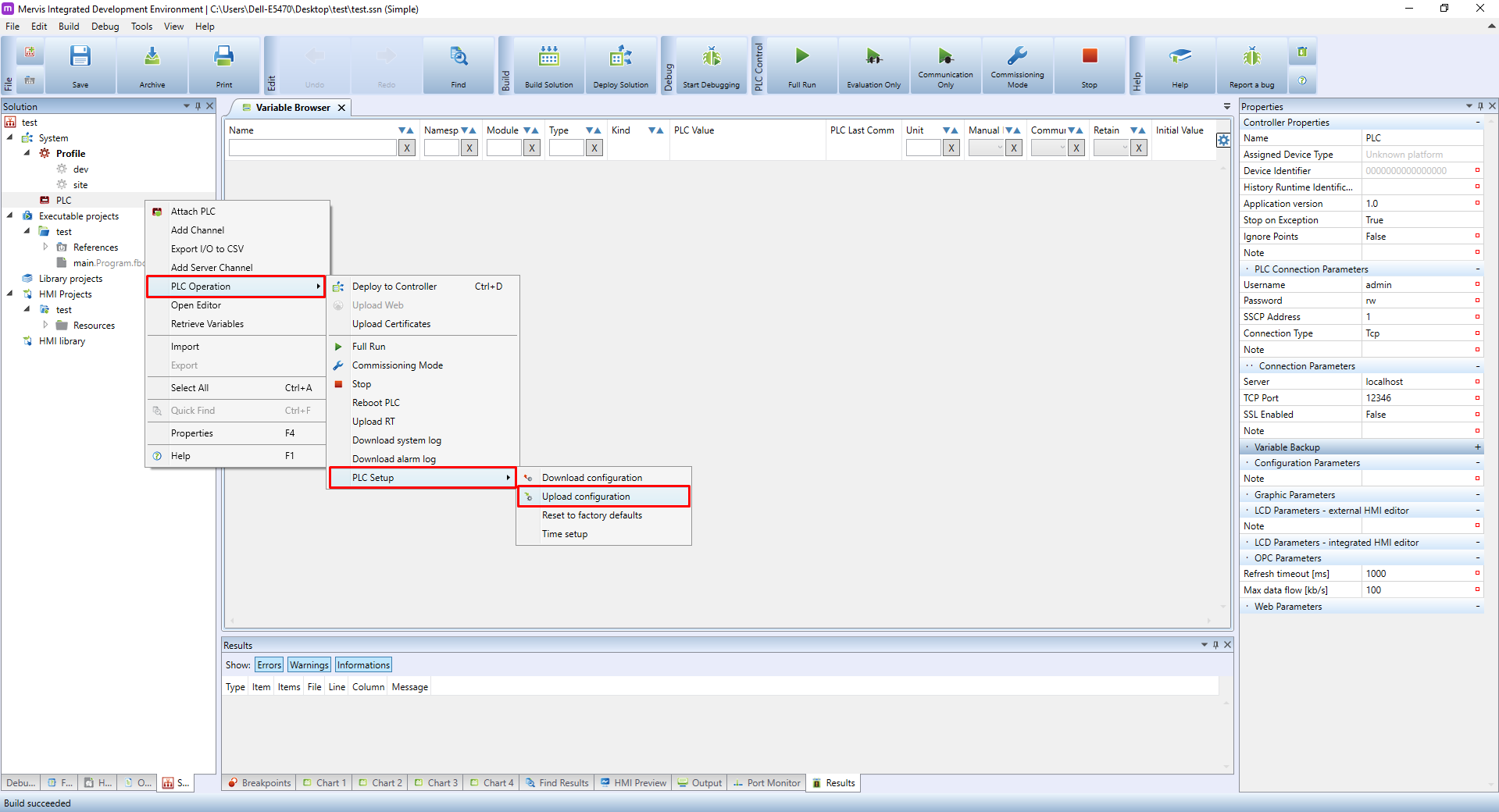
After finishing the configuration, right-click on the PLC, select PLC Operation → PLC Setup → Upload configuration
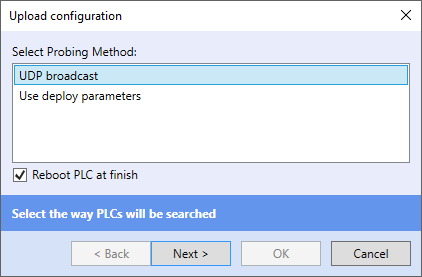
Now select UDP broadcast and click on Next, prompting the IDE to search for your PLC. Upon detecting the previously attached PLC the configuration will be uploaded into it.
UDP broadcast can be used only in a local network, and as such utilizes MAC addresses. It allows you to detect PLCs without the need to manually enter their IP address - this is also helpful in situations where you disable DHCP by mistake, or you set a wrong IP address.
Note: If you set up a new login and password, the old credentials are still used for the configuration upload. After a successful upload, you need to enter the new credentials again into PLC Connection Parameters. From that moment a new password is saved and each project uploaded into the PLC must use the new credentials.
For uploading configurations or projects, the fast and reliable TCP is used. However, this method also requires you to know connection parameters, such as IP address. Through the TCP it is possible to communicate also via a proxy server.
Caution: if you are unable to upload configuration, upload a new project etc. after a password change, the most likely cause is you uploaded a wrong password by error. If you can't remember the correct password, you can reflash the PLC's operating system as a last-resort solution. See the corresponding guides for Unipi Patron, Unipi Axon and Unipi Neuron/Unipi 1.1.

Configuration explained
The following articles will explain all configurations you need to perform before uploading the RT:
Cloud Access Parameters
Enable – enables connection via Cloud Access
Channels – channels for communication
Server – Cloud Access server address
Port – communication port, default 23010
SSL Enable – enables encrypted connection
Timeout –

Date/Time Settings
Daylight Offsets – sets timezone and and time offset
UTC Offset [h] – a difference between the selected timezone and the UTC timezone - information value only
NTP Server URL – time synchronization server
Additional info about time/date settings is available in this tutorial

Networking
Enable Configuration over UDP – enables the configuration services (depends on network security)
Enable HTTP – povolení webového serveru
HTTP Port – TCP port used for connecting to web server
Enable HTTPS – povolení šifrovaného webového serveru
HTTPS Port – TCP port pro připojení k šifrovanému webovému serveru
Redirect HTTP to HTTPS – přesměrovávat HTTP komunikaci na HTTPS

Certificates
Enable Default CA –
Enable User CA –
Enable Server Certificate –
Enable Webserver Certificate –

Mervis DB Parameters
Enabled – enables saving into database
URL – database address
Communication Period [min] – interval of storing the internal buffer into database
Certification Validation: set to FALSE by default. More info available in the SSL Certification validity article.
User Name – database access login
Password – database access password

Proxy Parameters
Enabled – enables connection to proxy server
Proxy ID – proxy identification, used by PLC for accessing the proxy server
URL – address of the proxy server the PLC should connect to
Certification Validation - set to FALSE by default. Learn more in the SSL Certification validity article
Keep-alive Period – time interval of control messages (serves for prevent closure of TCP connection, recommended value is 10 seconds)

SSCP Parameters
SSCP address – address of the PLC for SSCP protocol, used both for TCP and serial communication
Number of Registrable Groups – number of variable groups
Number of Variables in Group – number of variables in the variable group
Enable TCP Server – enables the TCP communication
TCP Server Port – port of the TCP communication, default value = 12346
Enable Serial Server – enables the serial communication
Serial Server Port – serial port
Serial Port Baudrate – serial port transmission speed
Enable Serial Router –
Serial Router Port –
Serial Router Baudrate – serial line transmission speed
Enable SSL server – enables SSL secure transmission
SSL Server Port – number of the secure communication port, default value = 12347

Users Definition
Username (Engineering) – user with full access to the PLC
Password (Engineering) – his password
Username (Full Control) – user able to read from or write into variables
Password (Full Control) – his password
Username (Read Only) – user able only to read variables
Username (Read Only) – his password

Storage
Save history buffer in RAM – history buffer will be saved into RAM instead of eMMC/SD

Unipi specific
SSH Enabled – enables the SSH server connection
SSH password for Unipi user – password for SSH access to the PLC (login: unipi)

Common Properties
Enable .NET drivers – enables .NET server and its drivers


